

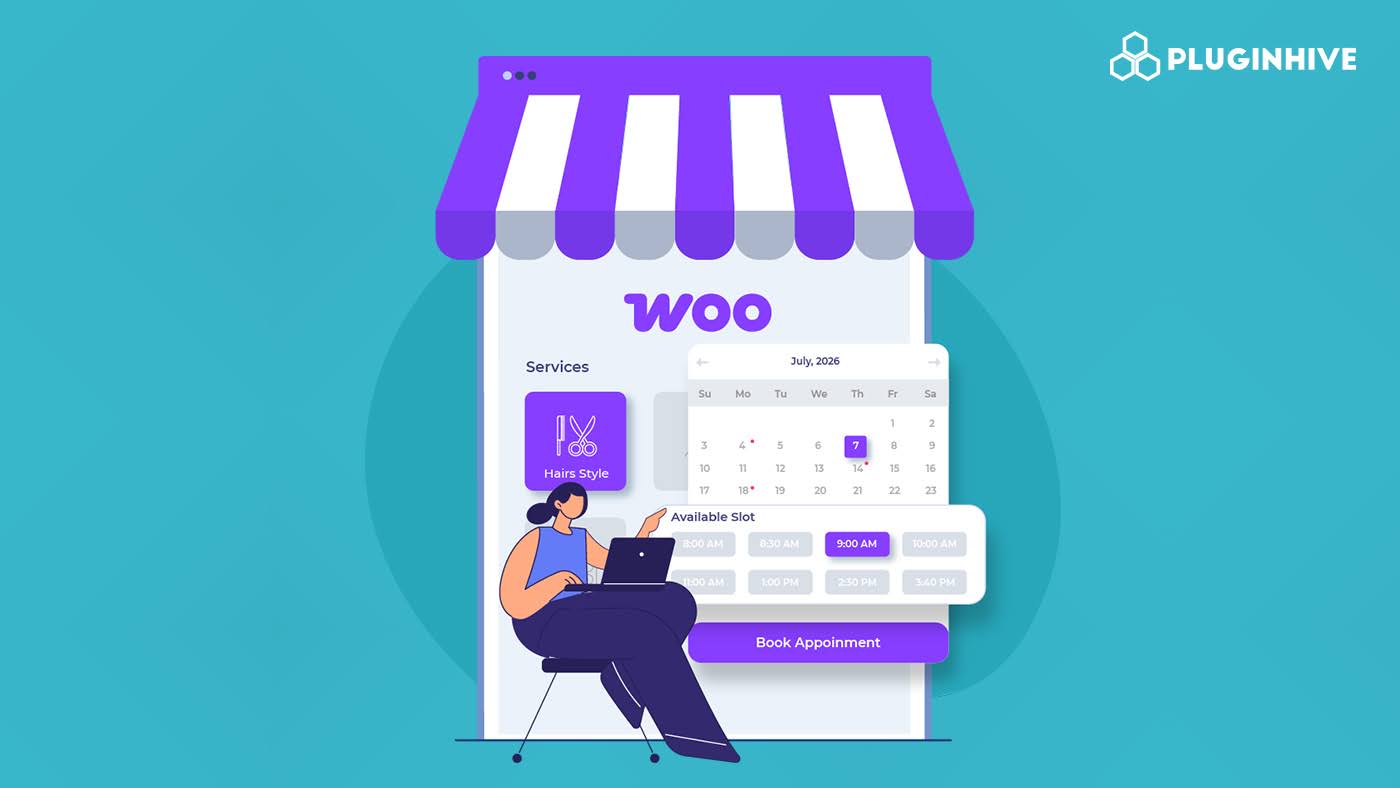
For any service-based business running on WooCommerce, whether that is a salon, a clinic, a consultancy, a fitness studio, or anything else where customers book a specific time to come in, having a proper appointment scheduling system built into the store is one of those things that makes daily operations considerably less chaotic.
The Booking and Appointment plugin by Extendons handles this through a dedicated appointments setup, and this blog is going to walk through the whole process of getting time slot-based WooCommerce bookings properly configured for a service business.
Understanding How the Appointments System Works Before Setting It Up
Before jumping into the configuration, it helps to understand how the appointments feature is structured within the plugin because it is built differently from the advance booking and simple booking options, and knowing that upfront makes the setup process a lot more straightforward.
The appointments system is built around time slots, meaning rather than customers selecting a date range or a number of days, they choose a specific date and then pick from the available time slots on that date based on the schedule you have defined. Each slot has a set duration, a price, and a defined availability that is controlled through the weekly schedule you configure in the global settings.
The WooCommerce bookings setup for appointments works across two levels. The global level is where you define the general appointment schedule, staff members, labels, and off days that apply across all appointment products. The product level is where you enable appointments on a specific product and configure any product-specific pricing or staff assignments. Getting the global settings right first is important because the product level settings build directly on top of them.
Getting Started With the Plugin Installation
If the Booking and Appointment plugin is not yet installed on your store, here is how to get it up and running:
- Log in to your WooCommerce account and navigate to My Subscriptions
- Find the Booking and Appointment plugin and click the Add to Store button next to it
- Follow the on-screen instructions, and the plugin will be added to your store automatically
- Once added, go to your WordPress admin panel and activate it from the Plugins section
After activation, the plugin settings are accessible under WooCommerce > Booking and Appointment, and this is where both the global configuration and the booking calendar live. The first thing worth doing after activation is spending some time in the global settings before touching any product-level configuration.
Setting Up the Global Appointment Schedule
The appointment schedule at the global level is the foundation that every appointment product in your store builds on, and it is configured under WooCommerce > Booking and Appointment > Appointment Schedule tab.
This is where you define when your business is actually available for appointments across the week, and it is worth being thorough here because these settings directly control which dates and times customers can select when booking.
Weekly Schedule Setup
Inside the schedule settings, you will find the days of the week listed out, and for each day you want to enable appointments, you check the corresponding checkbox and set the available time window for that day. So if your business operates Monday through Friday from 9 am to 6 pm, you would enable those five days and set the start and end times accordingly.
Each day can have its own time window independently, which is useful if your hours vary across the week. A lot of service businesses, for example, have shorter hours on certain days or are closed on specific weekdays but not others, and the schedule settings accommodate all of that without requiring everything to be uniform.
Setting the Slot Duration
The slot duration determines how long each appointment is. Whether your service runs for 15 minutes, 30 minutes, an hour, or two hours, you set that duration here, and the plugin uses it to calculate how many slots are available within the time window you defined for each day.
This is one of the more important settings to get right at the global level because it affects everything downstream, from how many bookings can be taken in a day to how the time slot display looks to customers on the product page.
Adding Break Times Between Appointment Slots
Once the weekly schedule and slot duration are in place, the next thing to configure is break times between slots, and this is a feature that is easy to overlook but genuinely important for any real service business.
Break times are the gaps you build into the schedule between consecutive appointment slots to allow for preparation, cleanup, travel between locations, or just giving the person doing the appointments a moment to reset before the next one. Without break times configured, slots can be booked back to back with no buffer at all, which sounds fine in theory, but in practice creates a situation where running slightly over on one appointment puts everything else behind for the rest of the day.
Inside the schedule settings, you will find the break time configuration, where you can:
- Add a break time by specifying the day of the week it applies to and the duration of the break
- Create multiple break configurations for different days if your schedule varies across the week
- Set different break durations for different days, depending on what each day’s workload typically looks like
For example, a clinic might need a 15-minute break between appointments on weekdays but a longer 30-minute break on Saturdays when they are running at higher volume. The ability to set these independently per day rather than globally across all days is the kind of flexibility that makes the schedule reflect how the business actually operates rather than an idealized version of it.
Setting Up and Managing Staff Members
The staff management feature is one of the more significant additions to the WooCommerce bookings system for appointment-based businesses, and it is worth setting up properly if you have more than one person delivering the service in your business.
Under WooCommerce > Booking and Appointment > Appointment Schedule > Staff Members Settings, you can create individual staff profiles and for each one define their own independent schedule, availability, off days, slot duration, and pricing. Here is how that works in practice:
Creating a Staff Member
Click to add a new staff member and give them a name that will appear on the booking form when customers are making their selection. Once created, each staff member has their own settings section where you configure everything about their individual availability.
Individual Staff Schedules
Each staff member can have their own weekly schedule that is completely independent from the general schedule and from other staff members. So if one team member works Tuesday through Saturday and another works Monday through Friday, those schedules can be set individually without one affecting the other.
Per Staff Slot Duration and Pricing
This is where the staff management feature gets particularly useful for businesses where different team members charge different rates or work in different session lengths. You can set a unique slot duration and price for each staff member independently, so a senior practitioner who charges more and works in longer sessions is configured differently from a junior team member with shorter slots and a lower rate.
When a customer selects a specific staff member on the booking form, the slot duration and pricing assigned to that staff member automatically override the product level defaults. So the booking form dynamically adjusts to show the correct slots and pricing based on the customer’s choice, without requiring any manual intervention from the admin side.
Staff Off Days
Each staff member also has their own off-day configuration, where you can mark specific dates as unavailable for that person. This is how you handle individual holidays, personal days, or planned absences without blocking the entire appointment calendar for everyone. If one staff member is away on a particular date, only their availability is affected, and other team members remain bookable on that day as normal.
Configuring Off Days for the Whole Business
Beyond individual staff off days, the plugin also lets you set off days at the business level that apply to the entire appointment calendar rather than just a single staff member. This is where you handle public holidays, seasonal closures, planned maintenance days, or any other date where the whole business is unavailable, rather than just one person.
Inside the Off Days Settings section, you can select specific dates directly on the calendar to disable appointments across the board for those days. Customers will not see those dates as available when browsing the booking calendar on the product page, and if they try to navigate to an off-day date, they will not find any available slots to select.
This is a much cleaner way to handle closures than trying to remember to manually block out dates as they come up, because you set it once in the calendar and it just works from that point forward without requiring any ongoing management.
Setting Up the Appointment Product in WooCommerce
With the global schedule, staff members, break times, and off days all configured, the next step is actually setting up the product that customers will book through. This is where the booking for WooCommerce configuration moves from the global settings into the individual product.
Go to WooCommerce > Products and either add a new product or edit an existing one. In the Product Data dropdown, select Advanced Bookable Product, which is the product type that unlocks the full bookings configuration, including the appointments option.
Once the product type is set, scroll down to the product data tabs and look for the Appointments checkbox in the product data header. Checking this box is what switches the product into appointment mode and reveals the appointment-specific settings.
Inside the appointment settings at the product level, you can configure:
Price Per Slot
Set the base price that customers are charged per appointment slot for this product. This is the default price that applies unless a specific staff member with their own pricing is selected by the customer during booking.
Duration of Slot
Define how long each appointment slot runs for this product specifically. You can set this in either minutes or hours, depending on your service type. This product level duration works as the default, and like the pricing, it gets overridden by the staff member’s individual slot duration if a specific staff member is chosen.
Assign Staff Members
Select which staff members from your global staff list should be available for this specific product. Not every staff member needs to be assigned to every product, so if certain team members only work on certain services, you can limit the staff selection on each product accordingly.
Display Design
Choose between the Simple layout and the Accordion layout for how the appointment booking form appears on the product page. The simple layout shows everything at once, while the accordion layout organizes the booking steps in a collapsible format, which can feel cleaner on products with more complex booking options.
How Customers Experience the Appointment Booking Process
Once everything is configured and the appointment product is live, it is worth understanding what the customer actually sees when they go through the WooCommerce bookings process on the product page because it helps you verify that everything is set up correctly before real customers start booking.
When a customer lands on an appointment product page, they will see the booking form displaying the appointment date selector and the available time slots based on the schedule you configured. If staff members are assigned to the product, they will also see a staff selection option, and once they pick a team member, the time slots and pricing update automatically to reflect that person’s individual schedule and rates.
Customers select their preferred date from the calendar, which only shows dates that have available slots based on your schedule and off-day settings, then choose from the available time slots for that date. If you have set up the booking confirmation requirement in the product settings, the booking will go through as a pending confirmation rather than being automatically confirmed, which gives you a review step before the appointment is locked in.
Once a booking is placed, it appears in the Booking Calendar under WooCommerce > Booking and Appointment, where you can see all upcoming appointments with the color coding from the calendar settings, making it easy to identify the status of each one at a glance.
Making Sure Email Notifications Are Set Up Properly
One last thing worth checking before considering the appointment setup complete is the email notification configuration, because automated emails are what keep customers informed about their booking without requiring any manual communication from your side for every single appointment.
Under WooCommerce > Booking and Appointment > Email Templates, you can create and customize the email templates that go out to customers automatically when a booking is confirmed, when its status changes, or when any other booking event triggers a notification. You can add custom variables to these templates and schedule when they are sent so the communication around each appointment feels timely and professional without you having to manually send anything.
For appointment-based service businesses in particular, the automated confirmation email is probably the most important one to get right because it is what gives customers certainty that their booking went through successfully and gives them the key details of their appointment in one place.
Conclusion
Setting up time slot-based WooCommerce bookings for a service business is one of those configurations that takes a bit of time to get right at the global level, but once it is done properly, it essentially runs itself. The Booking and Appointment plugin by Extendons covers every part of the appointment scheduling process, from the weekly schedule and break times through to individual staff management, off-day control, per slot pricing, and automated email notifications.
Getting each of these sections set up in the order covered in this guide means you end up with a booking for WooCommerce system that accurately reflects how your business actually operates and gives customers a smooth, professional appointment booking experience from start to finish.