

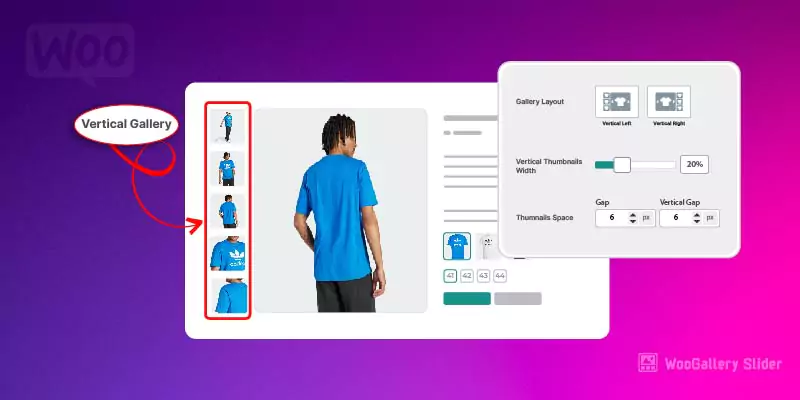
A compelling product page can make or break a sale in your WooCommerce store. While high-quality images are essential, how those images are presented matters just as much. A product gallery slider allows you to showcase multiple images and even videos in an interactive, user-friendly format that improves engagement and boosts conversions.
In this comprehensive guide, you’ll learn what a WooCommerce product gallery slider is, why it’s important, and most importantly, how to add one to your WooCommerce store using a powerful plugin solution.
What is a Product Gallery Slider in WooCommerce?
A product gallery slider is a dynamic feature that displays product images (and sometimes videos) in a sliding or carousel format on the product page. Instead of static images stacked vertically, customers can scroll, swipe, or click through visuals.
This makes it easier to:
- Showcase multiple product angles
- Highlight features and details
- Provide a more interactive shopping experience
Why Add a Product Gallery Slider?
Adding a product gallery slider to your WooCommerce store offers several benefits:
1. Improved User Experience
Customers can easily browse through images without leaving the product page.
2. Better Product Visualization
Multiple images and videos help customers understand the product more clearly.
3. Increased Conversions
More engaging product pages often lead to higher purchase rates.
4. Mobile-Friendly Navigation
Sliders are especially effective on mobile devices, allowing swipe gestures.
Methods to Add a Product Gallery Slider
There are multiple ways to add a product gallery slider in WooCommerce:
- Using built-in WooCommerce features (limited functionality)
- Custom coding (requires development skills)
- Using plugins (recommended for flexibility and ease)
The most efficient and scalable approach is using a plugin, especially if you want advanced features like video support, zoom, lightbox, and customization.
How to Add a Product Gallery Slider to WooCommerce (Step-by-Step)
One of the best ways to implement this feature is by using a dedicated plugin like Product Gallery Slider for WooCommerce. Below is the complete setup and configuration process.
Product Gallery Slider for WooCommerce
WooCommerce product gallery slider plugin lets you display product and gallery images in the slider and add the videos in the gallery.
Installation
- Download Product Gallery Slider for WooCommerce and have your.zip file
- At the WordPress admin panel, go to the Plugins section, and click ‘Add New’ to upload and install the plugin you recently downloaded from WooCommerce.com.
- Upload the .zip file to proceed with the installation.
- Wait until the plugin installs. After successful installation, activate the plugin, and move on to configuration settings.
Configurations
At the admin panel go to WooCommerce > Settings and click the Gallery Slider tab to configure this extension.
General Settings:
Here you can set the followings.
- Enable Gallery Slider (Enable gallery slider for your website)
- Enable Multiple Files for Variations: (Check this option to add multiple gallery images for each variation)
- Product/Category Restriction (Select all or specific products or categories you want to apply gallery slider)
- Auto Play Slider (Enable or Disable the auto play option for the slider)
- Enable Numbering on Gallery (Check this to enable numbering on slider images)
- Number Font Color (Select the color of slider numbers)
- Auto Play Timeout (Set time to autoplay timer for changing image)
Thumbnail Settings:
Click on the thumbnail settings tab to configure your thumbnail settings.
- Hide Thumbnails (Check this option to hide gallery thumbnails on the product page)
- Thumbnails to Show (Set number of thumbnails to show on the product page)
- Thumbnail Slider Layout (Choose slider layout i.e. Horizontal, Vertical Left, or Right)
- Selected Image Border Color (Set border for a selected image in gallery)
WooCommerce Image Gallery Slider
Bullets Settings:
After configuring the thumbnail settings, click on the bullets Settings tab to set bullets for the image gallery slider.
- Show Bullets (Check this option to show Bullets for Image Gallery Slider)
- Bullet Shape (Select shape of bullets i.e. circle, square, & lines)
- Counter Bullets Font Color (Select color to show on bullet hover)
- Bullets Placement (Option to set placement of bullets)
- Bullets Position (Set position of bullets, when ‘Bullets Placement’ is set to ‘Inside Image’)
- Show Bullets Thumbnail (Option to Show thumbnails on hover bullets, when ‘Bullets Placement’ is set to ‘Below Image’)
- Bullets Background Color (Set background color of bullets)
- Bullets Hover Color (Select color to show on bullets hover)
Arrows Settings:
Now Move to the Arrows Settings tab, Here you will find the following settings.
- Show Navigation Icons (Option to show arrow buttons to navigate images in slider)
- Show Navigation On (Select option to show navigation on hover or fixed)
- Navigation Button Shape (Set navigation button shape i.e. circle or square)
- Navigation Button Background Color (Select the background color of navigation buttons)
- Navigation Button Hover Color (Choose the hover color of navigation buttons)
- Navigation Icon Color (Select the color of the icon shown in the navigation buttons)
- Select Navigation Icon (Set the icon to show in navigation buttons)
WooCommerce Image Gallery Slider
Lightbox Settings:
In this tab, you can configure the followings.
- Light Box (Show button for a lightbox on image)
- Lightbox Icon BG Color (Select background color for lightbox icon)
- Lightbox BG Hover Color (Select background hover color for lightbox icon)
- Lightbox Icon Color (Set color for lightbox icon)
- Lightbox Position (Set Position for lightbox icon)
- Select Lightbox Icon (Choose an icon to show in the lightbox button)
- Lightbox Frame Width (px) (Select width of lightbox frame)
- Lightbox Slide Effect (Set slide effect for the lightbox)
Zoom Settings:
In the Zoom settings tab, you can set the followings.
- Zoom: (Option to show zoom box on hover)
- Zoom Box Frame Width (px): (Set zoom box frame width in px)
- Zoom Box Frame Height (px): (Set zoom box frame height in px)
- Zoom Box Radius (%): (Choose zoom box frame radius. Min 0% to Max 50%)
WooCommerce Image Gallery Slider
Rule Based Settings
In this tab, you can add new rules or delete previously created rules. When adding a new rule, you can configure all the above-mentioned settings.
How to Add Videos in Product Gallery?
At the admin panel go to Products tab and add or edit any product. Here you will find Product Videos tab in Product Data section and click Add New URL button to add videos. You can add videos by URL or upload from your computer.
Best Practices for Using Product Gallery Sliders
To get the most out of your gallery slider, follow these tips:
- Use High-Quality Images: Blurry or low-resolution images can hurt conversions.
- Keep It Fast: Optimize images to ensure fast loading times.
- Add Product Videos: Videos increase engagement and help customers understand product usage.
- Avoid Overloading: Too many images can overwhelm users, focus on quality over quantity.
- Ensure Mobile Optimization: Always test your slider on different screen sizes.
Common Mistakes to Avoid
- Using unoptimized images that slow down the page
- Ignoring mobile responsiveness
- Overusing autoplay (can annoy users)
- Not enabling Zoom or lightbox features
- Cluttering the interface with too many controls
Final Thoughts
Adding a product gallery slider to your WooCommerce store is one of the simplest ways to enhance your product pages and improve customer experience. With the right plugin, you can go beyond basic image display and create a fully interactive gallery that includes thumbnails, navigation arrows, zoom, lightbox, and even videos.
The Product Gallery Slider for WooCommerce plugin provides a complete solution with extensive customization options, making it ideal for store owners who want both flexibility and performance.
By implementing a well-designed gallery slider, you not only make your store look more professional but also help customers make faster and more confident buying decisions, ultimately increasing your sales.
