

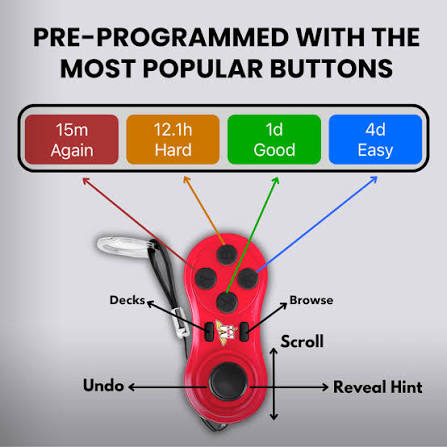
For audio cards, use a MODI Anki remote by giving one button the reveal or Good action, keeping answer choices reachable, and reserving a button for Replay Audio when the app or add-on exposes that command. The exact layout depends on your deck, because some cards play audio automatically, some require replay, and some have no audio on the current side at all.
MODI is an independent Bluetooth accessory, not an official Anki, AnkiMobile, or AnkiDroid product. Its documented behavior is the input it sends in Keyboard Mode or Switch Mode; the flashcard app decides whether those inputs reveal answers, choose ratings, replay sound, or do nothing. That distinction matters with audio cards, because sound availability comes from the note type, media files, app focus, device volume, and the review action currently visible. Readers can review the documented compatibility and setup details for Anki review remote before deciding which mode fits their device.
Audio Availability
Before changing button assignments, confirm what the card itself can play. Some decks place audio on the question side, some on the answer side, and some include several clips tied to different fields. If a card has no playable media at that moment, a Replay Audio button cannot create sound. Review a few representative cards manually first, especially cards with listening prompts, pronunciation examples, or sentence audio, so the remote layout reflects the deck rather than a single sample card.
This is also where automatic playback can affect expectations. If your app already plays the first clip when the card appears, the remote may only need Replay Audio for missed or repeated listening. If audio appears after reveal, make the reveal button easy to reach before prioritizing replay. The goal is a layout that matches when sound becomes available, not a layout that assumes every audio card behaves the same way in every deck.
Replay Audio
Replay Audio is most useful when it sits on a button you can press without hunting. In MODI Switch Mode, default actions include Replay Audio alongside Space or Good, Easy, Again, Hard, and Undo. On desktop, the optional MODI add-on can be used when you want custom button mapping beyond the default Keyboard Mode workflow. Keep Replay Audio separate from answer buttons if accidental rating changes would interrupt the way you listen and decide.
On AnkiMobile, use the app’s gamepad settings to assign actions after iOS recognizes the controller profile. On AnkiDroid, use the controls menu and set key binds for the actions you want. The available action list belongs to the app, not to MODI. If Replay Audio is not behaving as expected, test the same command from the app interface or keyboard first, then adjust the remote mapping after confirming the app can replay that card’s media.
Answer Layout
A practical audio-card layout usually starts with reveal or Space, then the answer choices you use most often. Desktop Anki supports common study controls such as Space or Enter to reveal an answer or choose Good, and number keys for answer buttons when those buttons are available. MODI Keyboard Mode includes preset inputs for Again, Hard, Good or Next, Easy, Undo, Suspend, Escape, Spacebar, and direction-key navigation, so many desktop audio decks need no add-on first.
For listening-heavy decks, avoid placing Again and Easy where a replay press might land by mistake. Put Good or reveal under your most natural thumb position, then arrange Again, Hard, and Easy where they are deliberate. Undo deserves a reachable location if you frequently catch accidental ratings. This is a workflow choice, not a promise about study outcomes; it simply reduces unnecessary hand movement between the remote and the controls already provided by the Anki app.
Mode Choice
Choose the connection mode based on where you review. Keyboard Mode is intended for macOS, Windows, and Linux desktop use with preset keybindings, and it does not require the MODI add-on for the default workflow. Switch Mode is the standard recommendation for AnkiMobile on iPhone or iPad and AnkiDroid on Android because it exposes gamepad-style inputs those apps can configure. Audio cards do not change that basic mode decision by themselves.
If you switch between desktop and mobile, expect to forget saved MODI or Anki remote Bluetooth entries before pairing again in the other mode. Pressing Home wakes and reconnects in the last-used mode, but changing modes is different from waking. A remote that connects in the wrong profile may appear paired while the app ignores the buttons you expected to use for reveal, Replay Audio, or answer choices. Repairing is often the clean diagnostic starting point.
Volume And Focus
After assigning buttons, test sound before blaming the mapping. Set device volume to an audible level, confirm the app is the active window or foreground app, and review a card that definitely contains audio on the visible side. Press the app’s own replay control, then try the remote button. This separates media, volume, and focus problems from remote input problems, which is especially important when several apps, browser tabs, or system audio routes are open.
On desktop, focus can be as simple as clicking back into Anki before pressing the remote. On mobile, make sure AnkiMobile or AnkiDroid is the active app and that Bluetooth remains connected. If headphones, speakers, or system mute controls are involved, verify those separately. The remote sends input; it does not manage the device’s audio output. A clear test card with known sound is the fastest way to avoid chasing the wrong setting.
Troubleshooting Checks
If the remote pairs but audio controls do not respond, first test a non-audio action such as reveal, Good, or Undo. If those actions work, the Bluetooth connection is probably reaching the app and the issue is likely the Replay Audio assignment, app focus, or card media. If no actions work, forget the saved Bluetooth entry, repeat the correct mode pairing, and restart the host device if the remote remains connected but unresponsive after the fresh pairing.
On AnkiDroid, remember that X-Y-B-A inputs can appear as Y-X-A-B in the key-bind menu because of a third-party display mapping issue. Treat that as a visual label mismatch, then confirm by assigning and testing commands on real cards. For longer sessions, watch the battery indicators: low battery flashes red quickly, charging flashes green, and charging complete turns the charging LED off. Decorative lighting can be turned off when it is not needed.
